How to use GetOTP.myCara guna GetOTP.my
Get the login code (OTP) sent to your Outlook / Hotmail account in a few taps. You only need the account line you received when you bought the account.
Dapatkan kod login (OTP) yang dihantar ke akaun Outlook / Hotmail anda dengan beberapa tekan sahaja. Anda cuma perlukan baris akaun yang diberi semasa anda membeli akaun.
Part 1Bahagian 1 Read your code (Quick read)Baca kod anda (Quick read)
The fastest way. No sign-up needed, and nothing is saved.
Cara paling cepat. Tak perlu daftar, dan tiada apa-apa disimpan.
1Paste your account lineTampal baris akaun anda
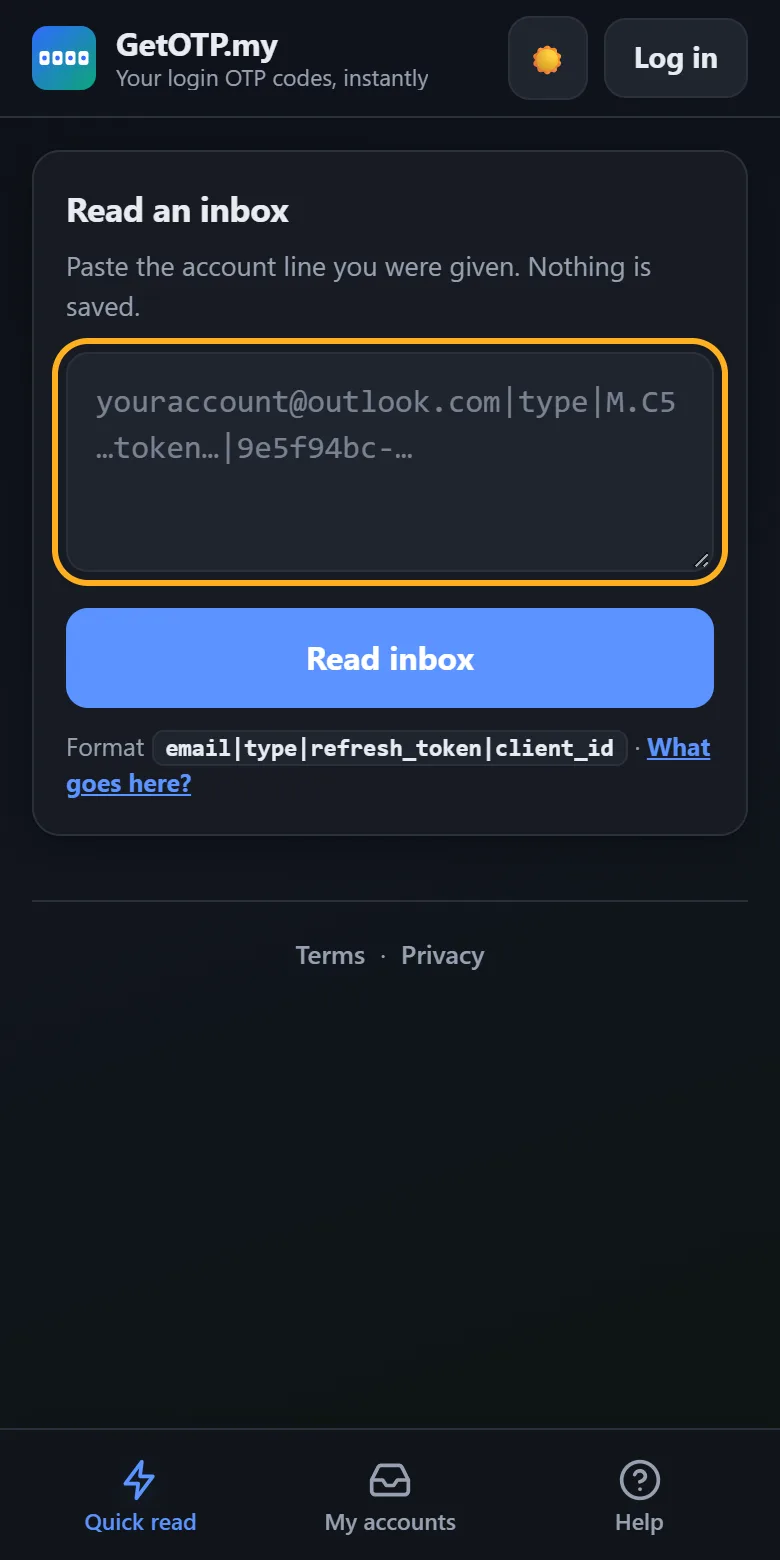
Open www.getotp.my. On the Quick read tab, paste the whole account line into the box (yellow frame).
Buka www.getotp.my. Di tab Quick read, tampal keseluruhan baris akaun ke dalam kotak (bingkai kuning).
It looks like this, all on one line:email|type|refresh_token|client_id
Bentuknya begini, semua dalam satu baris:email|type|refresh_token|client_id
2Tap “Read inbox”Tekan “Read inbox”
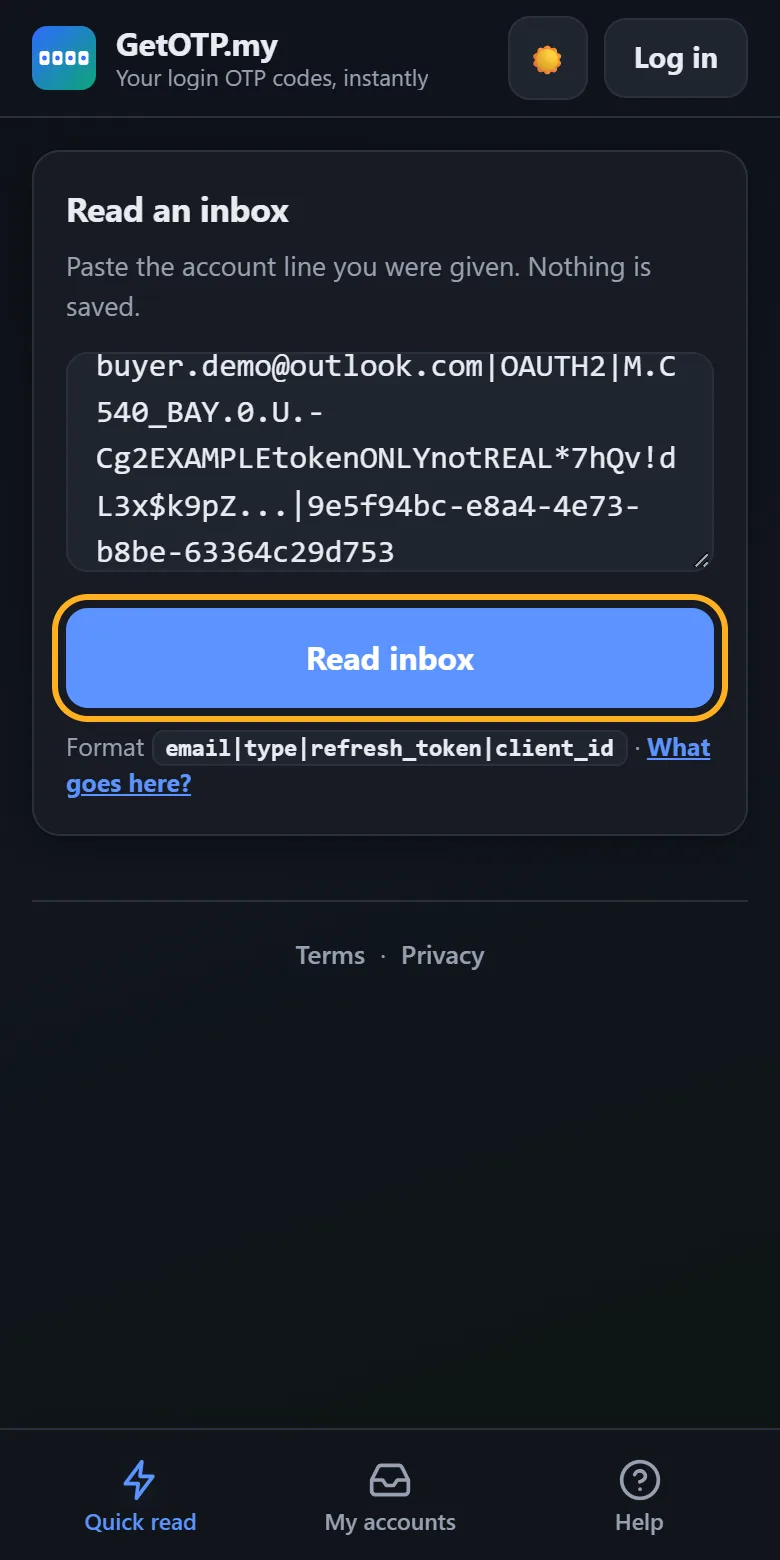
GetOTP.my signs in to the mailbox for you and loads the newest emails. This takes a few seconds.
GetOTP.my akan log masuk ke peti mel untuk anda dan memuatkan email terbaru. Ini mengambil masa beberapa saat.
3Copy the codeSalin kod
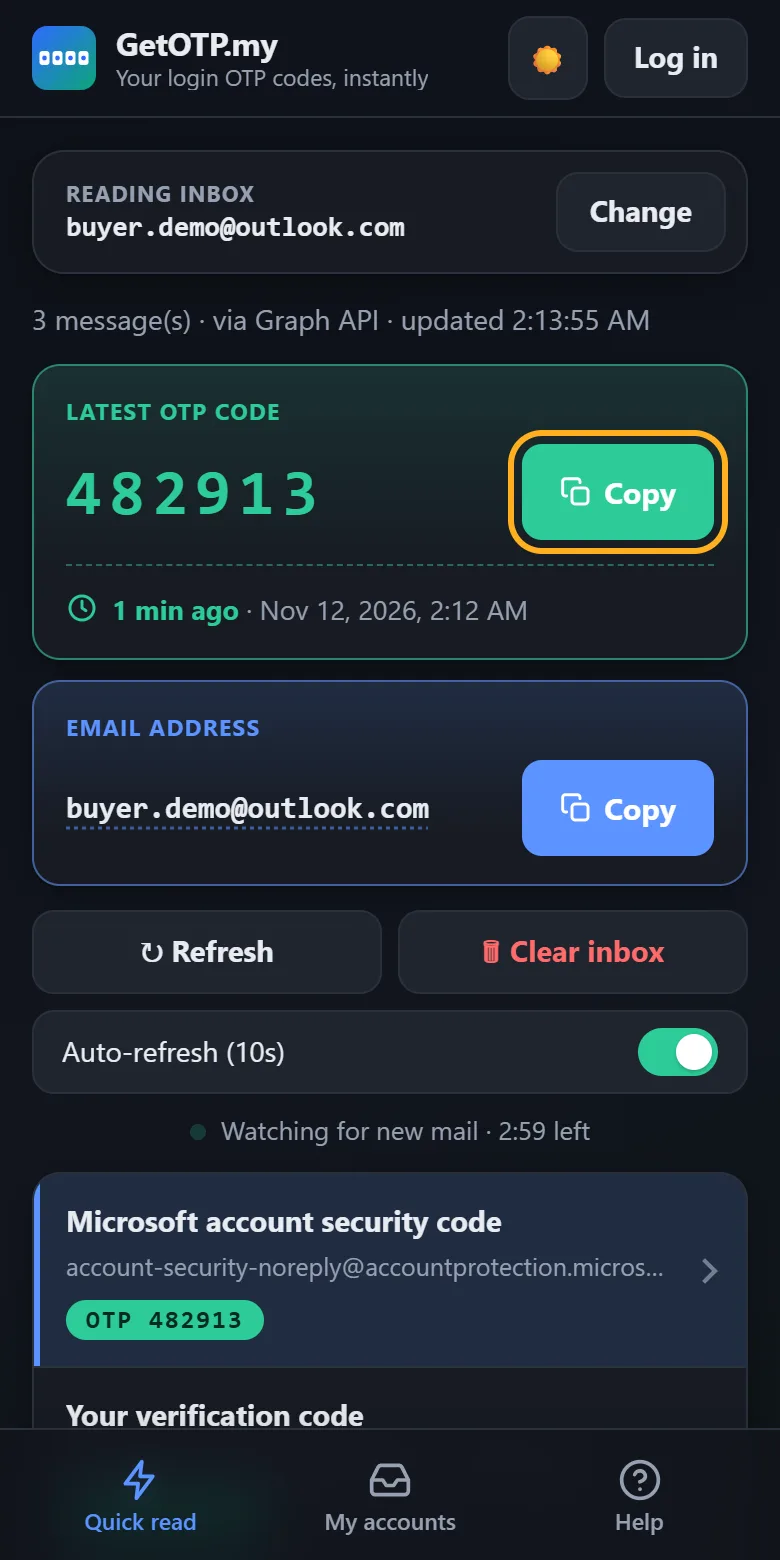
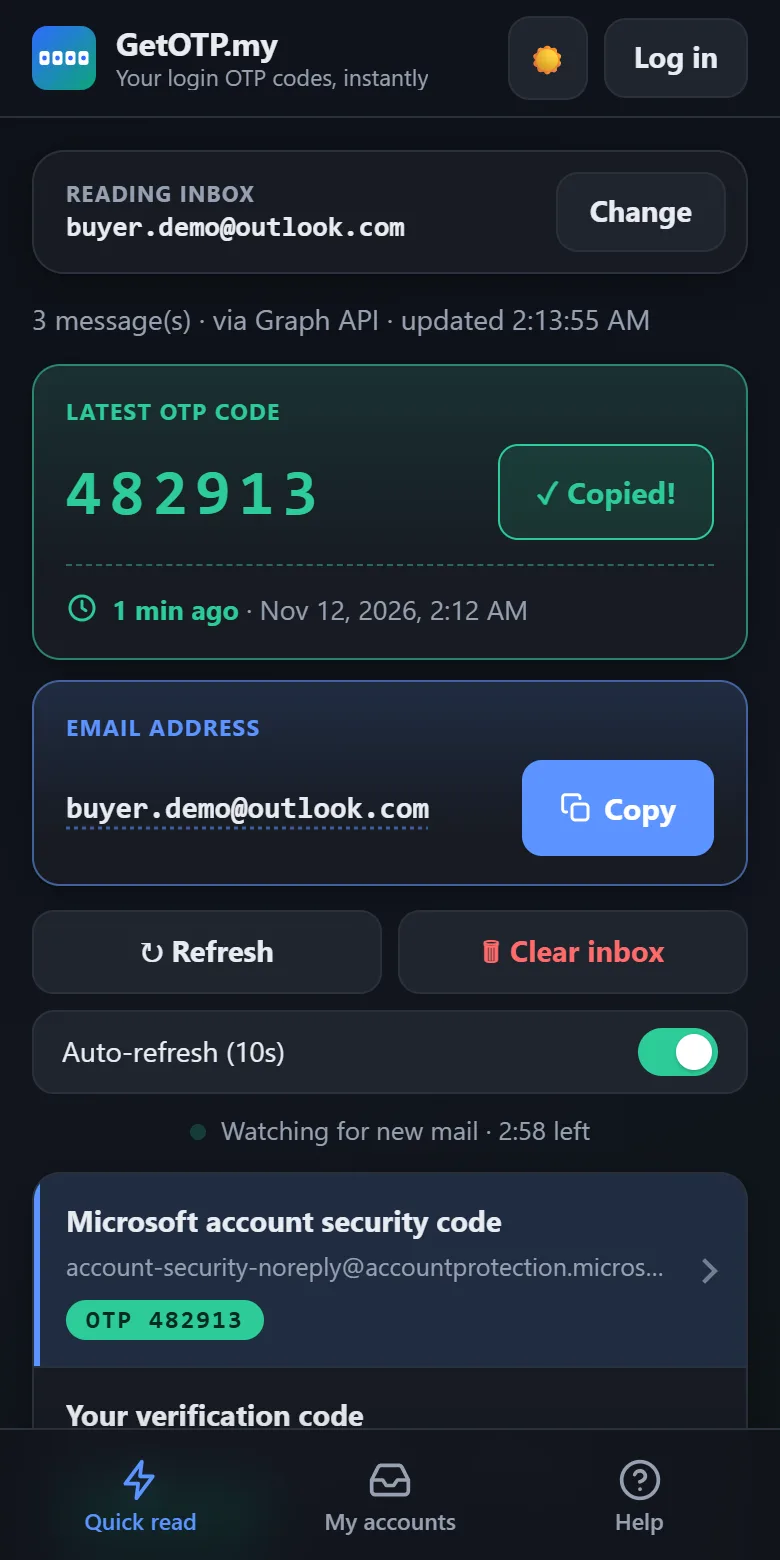
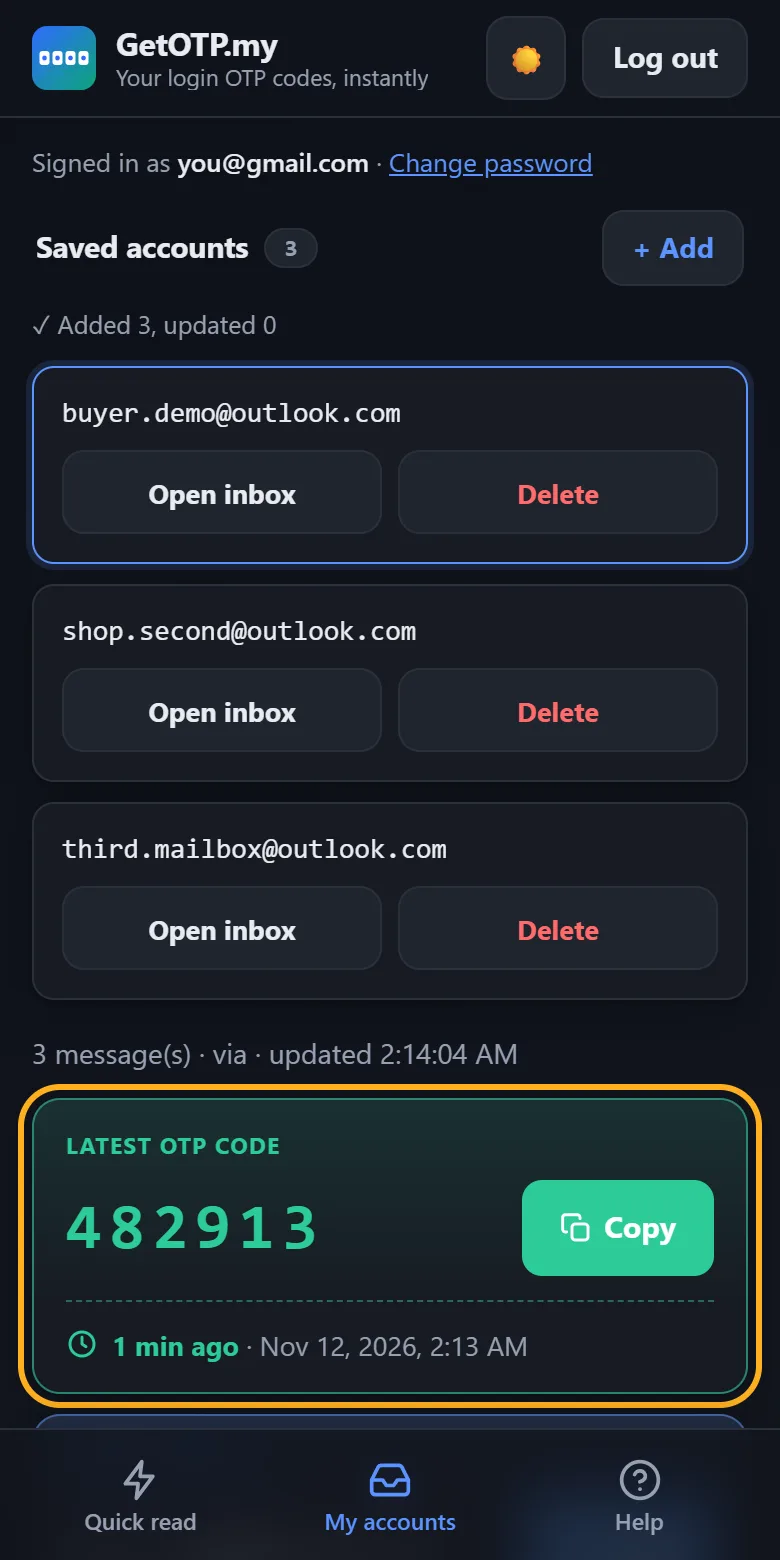
The newest code appears in the green Latest OTP code box, with how long ago it arrived. Tap Copy, then paste it into the app or website that asked for it.
Kod terbaru muncul dalam kotak hijau Latest OTP code, bersama berapa lama dahulu ia diterima. Tekan Copy, kemudian tampal ke dalam app atau laman web yang memintanya.
Need the email address too? Tap Copy in the blue Email address box.
Perlukan alamat email juga? Tekan Copy dalam kotak biru Email address.
4Waiting for a new code?Menunggu kod baru?
After you read an inbox, GetOTP.my keeps checking for new mail for 3 minutes (Watching for new mail). When the new code arrives, it shows up on its own.
Selepas anda baca inbox, GetOTP.my akan terus menyemak email baru selama 3 minit (Watching for new mail). Bila kod baru tiba, ia akan muncul dengan sendiri.
- Best order: ask the other app to send the code first, then come here.
- Tap ↻ Refresh any time to check again.
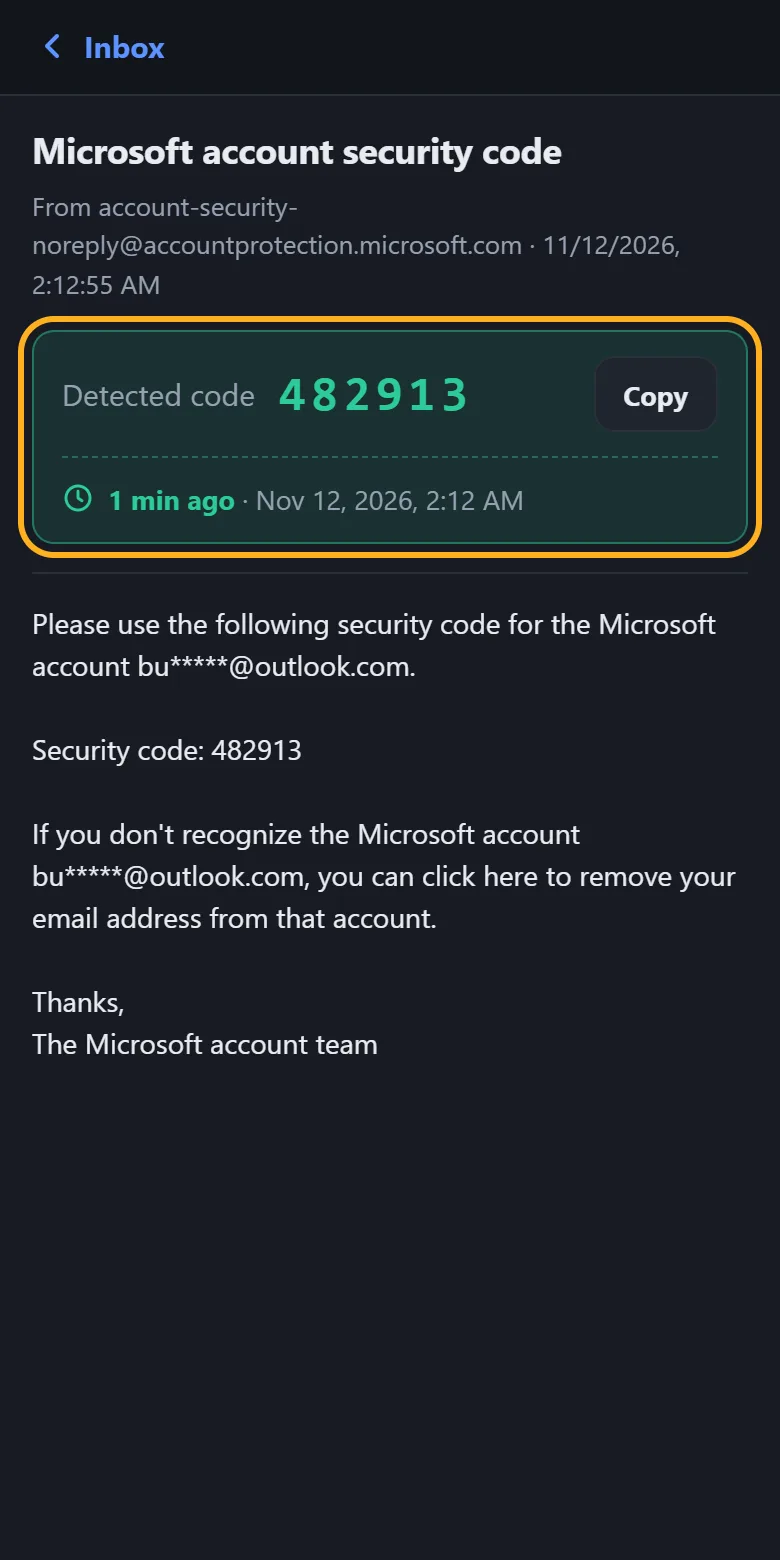
- Tap any email in the list to read all of it. A detected code is shown at the top.
- Susunan terbaik: minta app lain hantar kod dahulu, kemudian datang ke sini.
- Tekan ↻ Refresh bila-bila masa untuk semak semula.
- Tekan mana-mana email dalam senarai untuk baca keseluruhannya. Kod yang dikesan dipaparkan di atas.
Part 2Bahagian 2 Save your accounts (My accounts)Simpan akaun anda (My accounts)
Optional. Good if you have several accounts or check codes often. Paste once, then open any inbox with one tap.
Pilihan. Sesuai jika anda ada beberapa akaun atau kerap semak kod. Tampal sekali, kemudian buka mana-mana inbox dengan satu tekan.
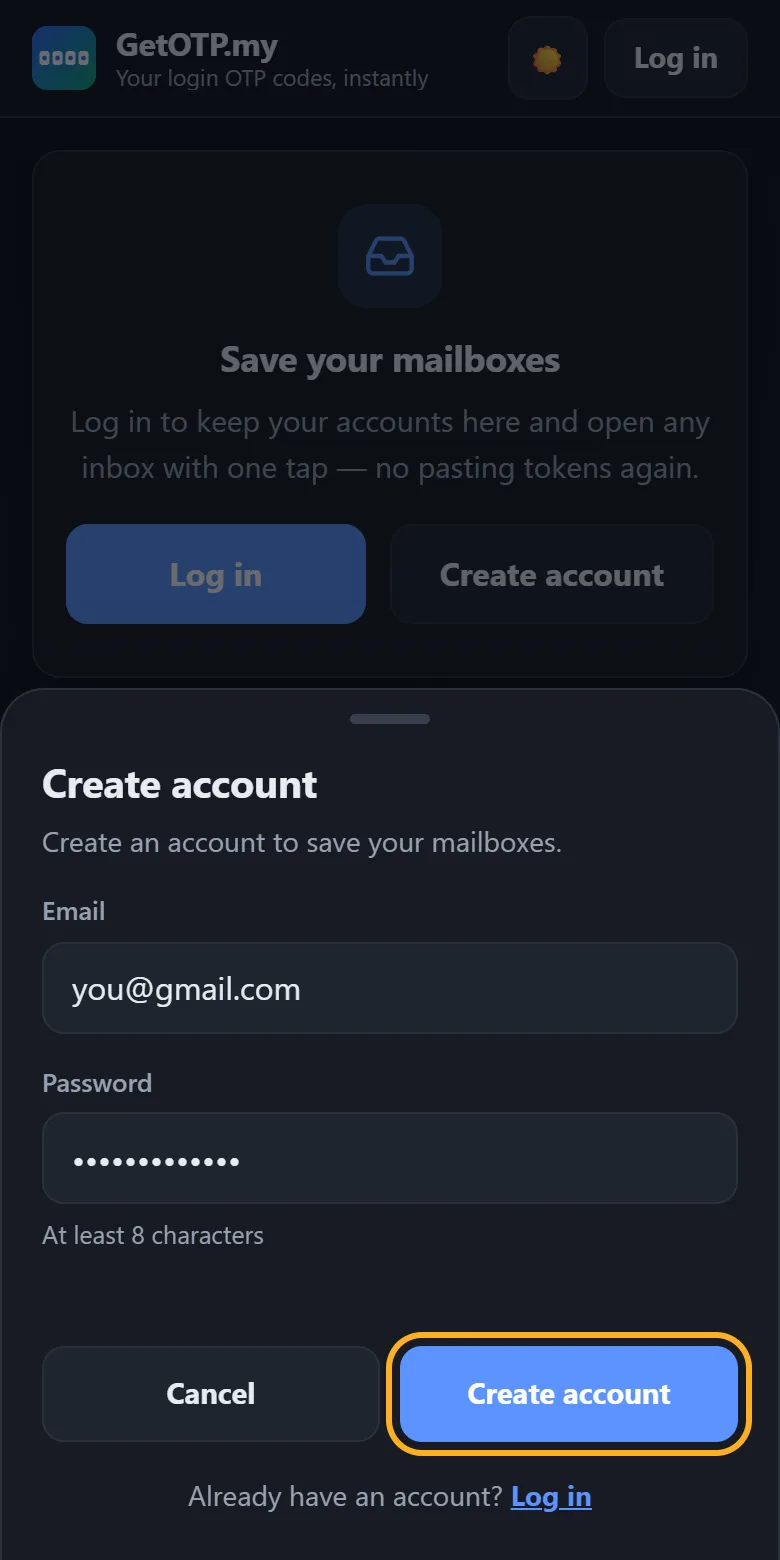
5Create a GetOTP.my accountDaftar akaun GetOTP.my
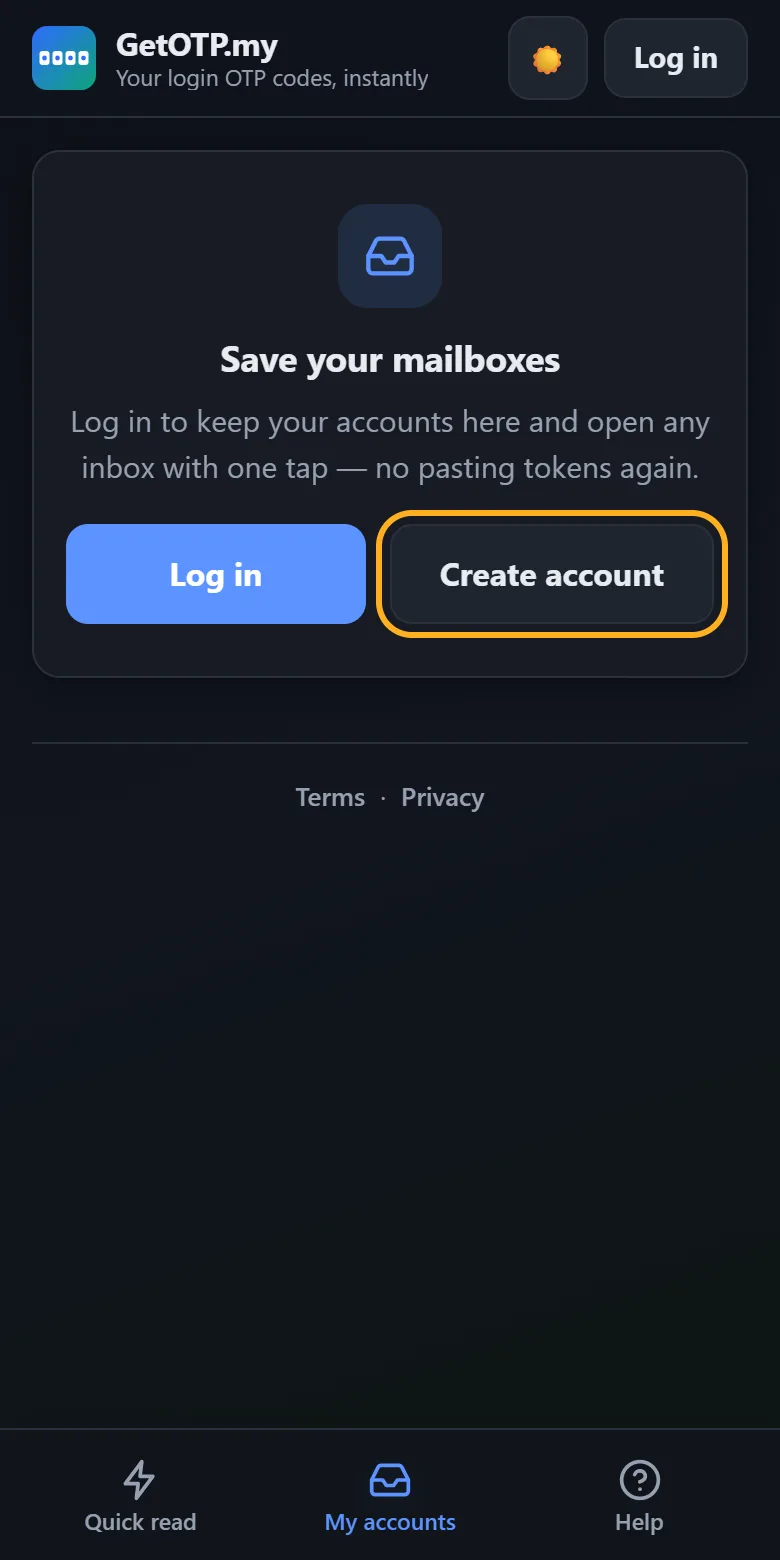
Go to the My accounts tab and tap Create account. Use your own email and a password (at least 8 characters).
Pergi ke tab My accounts dan tekan Create account. Guna email anda sendiri dan kata laluan (sekurang-kurangnya 8 aksara).
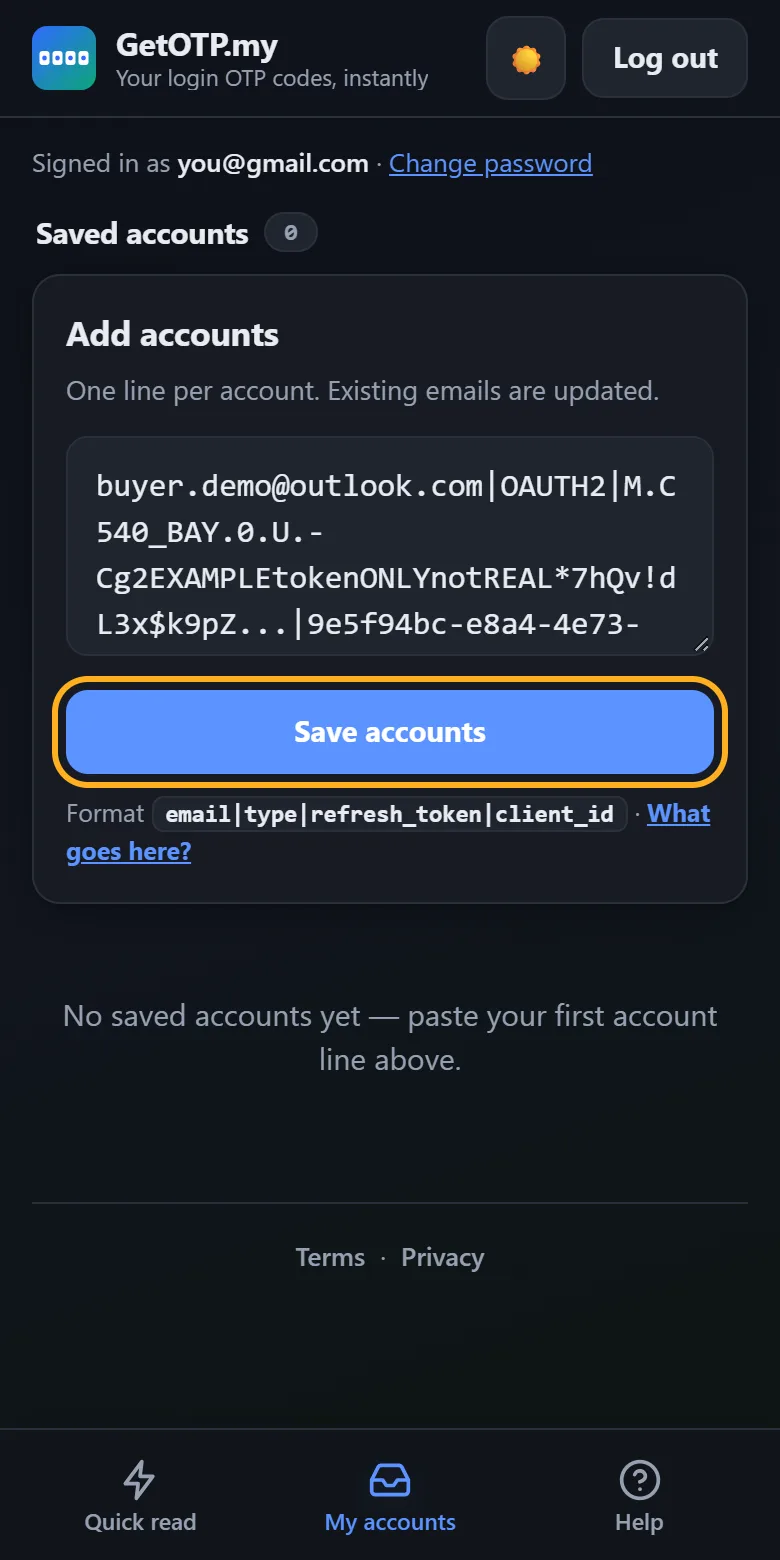
6Paste your account lines and saveTampal baris akaun dan simpan
Paste one or many account lines, one per line, then tap Save accounts. To add more later, tap + Add.
Tampal satu atau banyak baris akaun, satu baris setiap akaun, kemudian tekan Save accounts. Untuk tambah lagi kemudian, tekan + Add.
Saving the same email again updates it, which is handy when you get a fresh line.
Menyimpan email yang sama sekali lagi akan mengemas kininya, berguna bila anda dapat baris baru.
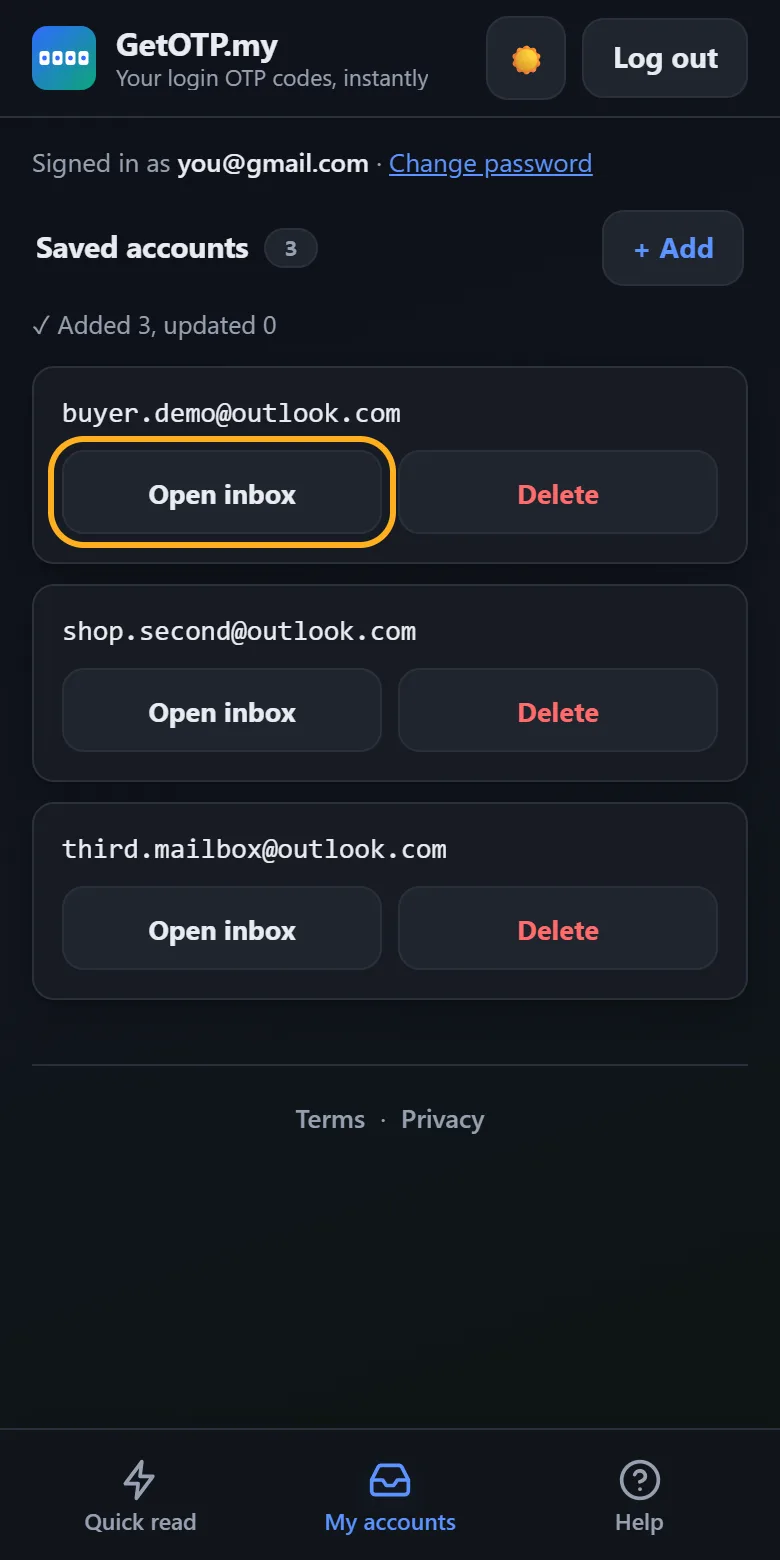
7Tap “Open inbox”Tekan “Open inbox”
All your saved accounts are listed. Tap Open inbox on any of them to see its latest code, exactly like Quick read.
Semua akaun yang disimpan disenaraikan. Tekan Open inbox pada mana-mana akaun untuk lihat kod terbarunya, sama seperti Quick read.
Part 3Bahagian 3 Your GetOTP.my passwordKata laluan GetOTP.my anda
Your saved accounts stay safe when you change or reset your password.
Akaun yang disimpan kekal selamat bila anda tukar atau reset kata laluan.
8Change passwordTukar kata laluan
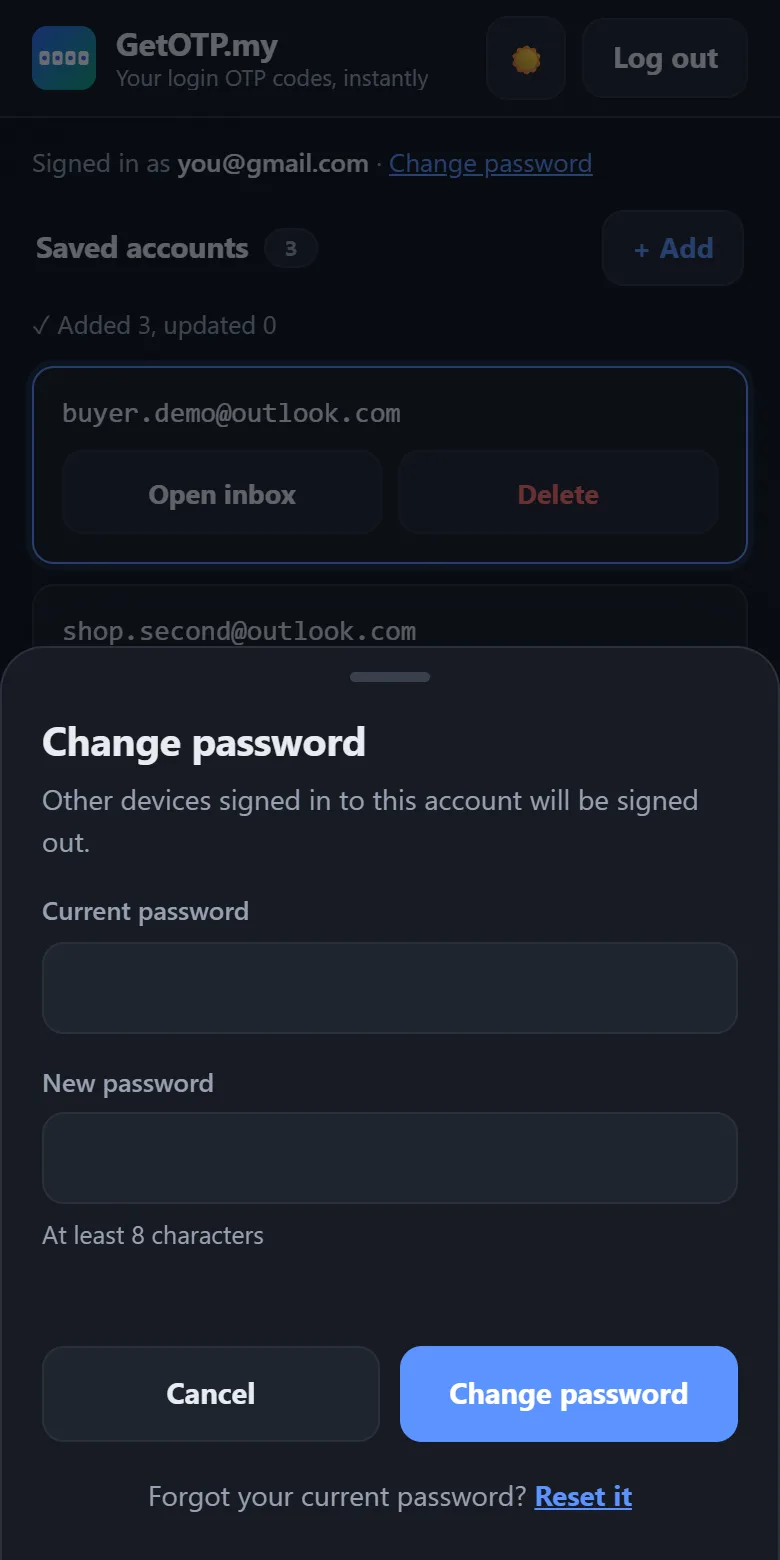
On My accounts, tap Change password next to “Signed in as”. Enter your current password and a new one.
Di My accounts, tekan Change password di sebelah “Signed in as”. Masukkan kata laluan semasa dan kata laluan baru.
For your safety, every other phone or computer signed in to your account is signed out. This one stays signed in.
Untuk keselamatan anda, semua telefon atau komputer lain yang log masuk ke akaun anda akan dilog keluar. Peranti ini kekal log masuk.
9Forgot your password?Lupa kata laluan?
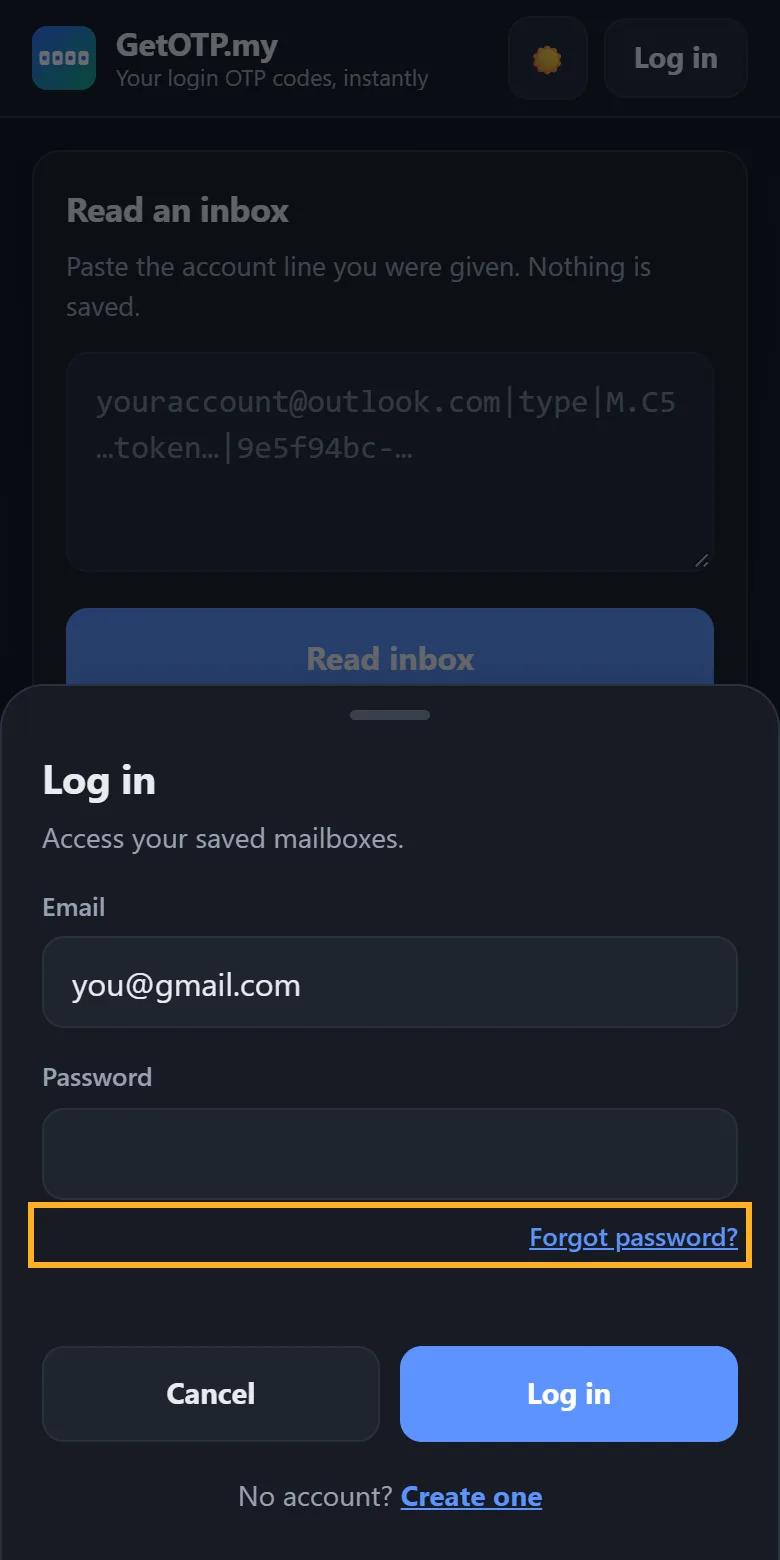
- Tap Log in, then Forgot password?
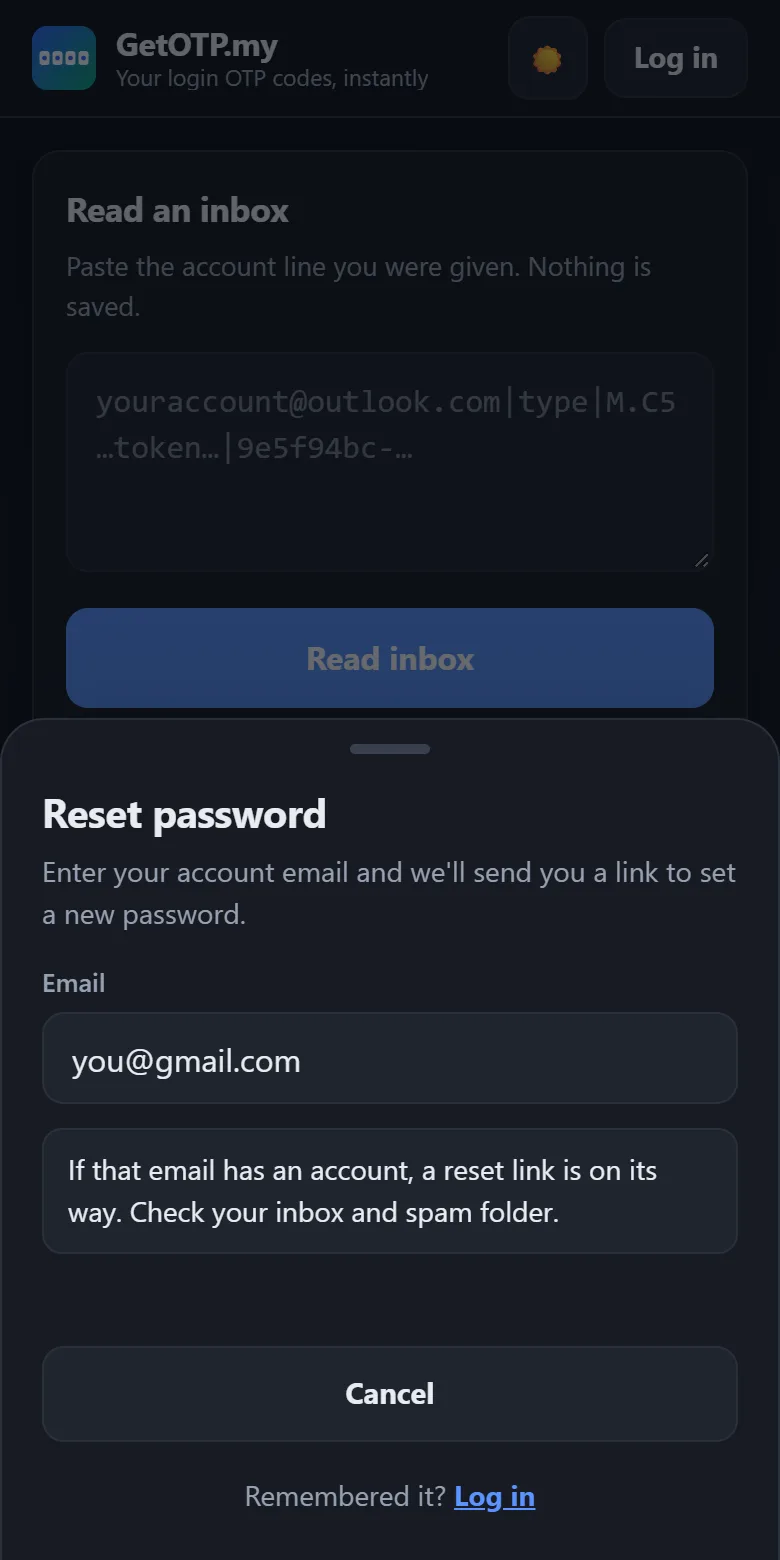
- Enter your email and tap Send reset link.
- Open the email from [email protected]. Check your spam folder too.
- Tap Set a new password, choose a new password, and you're signed in.
- Tekan Log in, kemudian Forgot password?
- Masukkan email anda dan tekan Send reset link.
- Buka email daripada [email protected]. Semak juga folder spam.
- Tekan Set a new password, pilih kata laluan baru, dan anda terus log masuk.